If your inbox feels like a second job, you’re not imagining it. Between sorting, replying, and following up, email quietly eats hours you could be spending on actual work or actual clients.
The good news: you don’t need a developer or a huge budget to fix this. Learning how to automate email workflows with AI is now something any freelancer, marketer, or small business owner can set up in an afternoon.
In The Futuristics, this guide walks you through exactly how to do it what to automate first, which tools are worth paying for, and the mistakes that trip people up when they start.
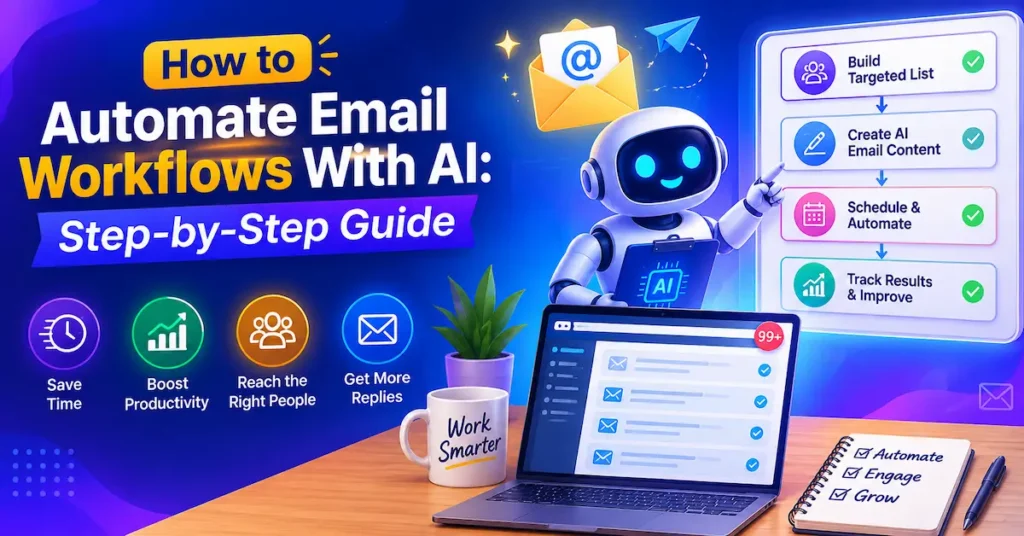
What Does It Mean to Automate Email Workflows With AI?
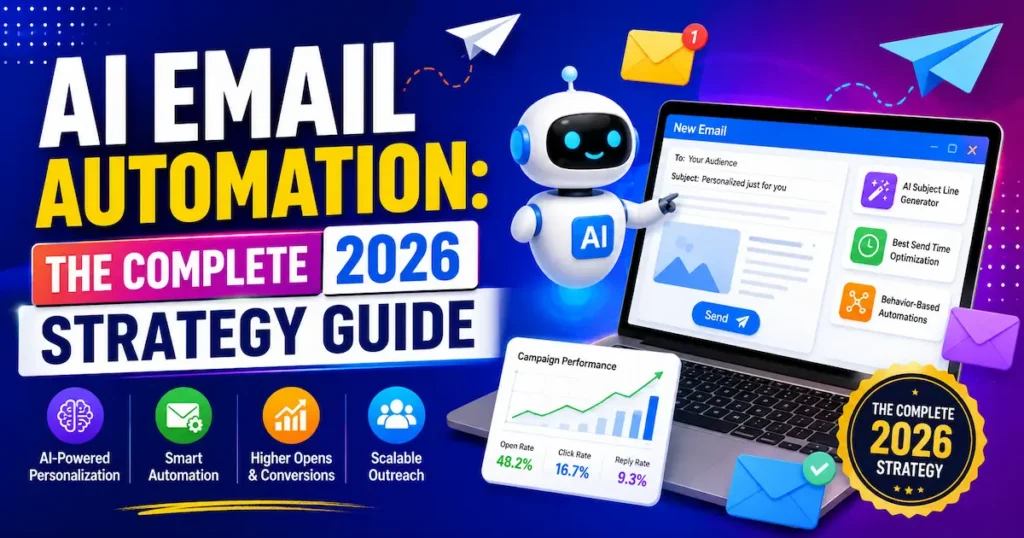
Automating write cold email workflows with AI means letting software handle the repetitive parts of email sorting, drafting, tagging, and following up so you only step in for decisions that actually need a human.
There are three layers to this, and most tools focus on one:
- Triage: Sorting incoming mail by priority, sender, or topic automatically
- Drafting: Generating replies based on context, past emails, or a knowledge base
- Workflow automation: Triggering actions like updating a CRM, sending a follow-up, or notifying your team when specific emails arrive
The strongest setups combine all three. You’re not just cleaning your inbox you’re turning email into a system that runs itself in the background while you work on higher-value tasks.
Key takeaway: AI email automation isn’t one feature. It’s triage, drafting, and workflow triggers working together, and knowing which layer you need first will shape which tool you pick.
Why Manual Email Management Is Quietly Draining Your Week
Most people underestimate how much time email actually costs. On average, an employee spends over four hours a day reading and responding to email more than half a standard workday — and the majority of that time is spent skimming messages that never needed a reply in the first place.
Email automation Vs manual email adds up fast for freelancers and small teams in the USA, UK, and Australia who are already stretched across client work, admin, and business development. Every minute spent manually sorting or drafting is a minute not spent billing, pitching, or building.
Pro Tip: Before automating anything, spend three days simply logging which emails you open, reply to, and delete without reading. That log becomes your automation blueprint it tells you exactly where AI will save the most time.
Key takeaway: Email isn’t just annoying it’s a measurable time cost, and most of it is repetitive enough to hand off to automation.
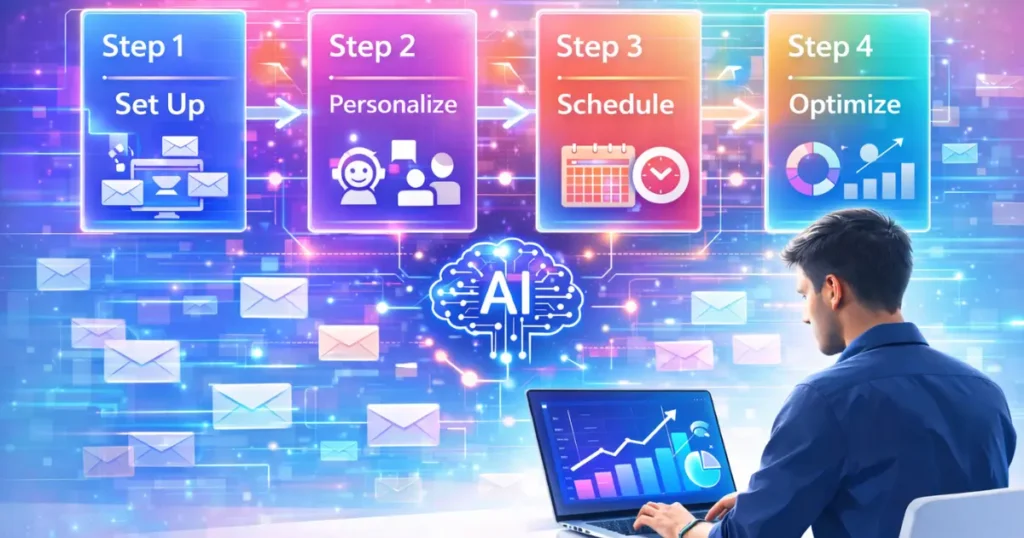
How to Automate Email Workflows With AI: A 6-Step Framework
You don’t need to automate everything at once. Follow this order and you’ll avoid the chaos of half-built workflows.
Step 1: Audit Your Current Email Patterns
List the email types you get most: client questions, invoices, meeting requests, newsletters, internal updates. Anything that follows a predictable pattern is a candidate for automation.
Step 2: Pick One Workflow, Not Ten
Start with the single most repetitive task usually inbox triage or drafting replies to FAQs. Trying to automate everything on day one is the fastest way to abandon the whole project.
Step 3: Choose the Right Tool for That Layer
If you need triage, look at inbox-management tools. If you need drafting, look at AI writing assistants built for email. If you need cross-app triggers (like updating a CRM when a lead emails you), you need a workflow automation platform such as Zapier, Make, or n8n.
Step 4: Connect Your Inbox and Set Guardrails
Most tools connect to Gmail or Outlook in a few clicks. Set clear rules for what the AI can send automatically versus what needs your approval first this matters most for client-facing or financial emails.
Step 5: Test on a Small Segment First
Run the automation on one email category for a week before rolling it out fully. Check tone, accuracy, and whether anything important slipped through.
Step 6: Review and Refine Monthly
AI drafting improves as it learns your tone, but it still needs a monthly check-in. Update templates, adjust triggers, and remove rules that no longer apply.
Key takeaway: Automating email workflows with AI works best as a phased rollout one workflow, one tool, tested small, then scaled.
6 Best AI Email Automation Tools Compared
Here’s how the most relevant tools stack up depending on what you’re trying to automate.
Zapier
Best For: Cross-app workflow triggers
Key AI Feature: AI-assisted “Zaps” connecting email to 6,000+ apps
Starting Price: Free tier; paid from ~$20/month
Make (formerly Integromat)
Best For: Visual, complex multi-step workflows
Key AI Feature: AI-powered scenario building
Starting Price: Free tier; paid from ~$9/month
n8n
Best For: Developers and technical teams wanting full control
Key AI Feature: Self-hosted AI workflow automation
Starting Price: Free (self-hosted); cloud plans from ~$20/month
Superhuman
Best For: Fast inbox triage and drafting
Key AI Feature: AI-written replies, auto-summaries
Starting Price: From ~$25/month
SaneBox
Best For: Filtering out inbox noise
Key AI Feature: AI-based priority sorting
Starting Price: From ~$16/month
Gmelius
Best For: Small teams needing shared inbox automation
Key AI Feature: AI + rule-based workflow triggers
Starting Price: From ~$14/user/mont
If you’re a solo freelancer, start with Superhuman or SaneBox for triage and drafting. If you’re running a small business with multiple tools (CRM, calendar, invoicing), Zapier or Make will connect email to everything else with far less manual work.
Key takeaway: Choose based on your workflow, not the tool with the most features a freelancer in Canada replying to client emails needs something different than an agency in the UK routing leads into a CRM.
3 Email Workflows Worth Automating First
1. New Lead Intake and Response
When a lead emails you, AI can tag the message, draft a first reply within your tone of voice, and add the contact to your CRM automatically — no manual data entry.
2. Client Follow-Ups
Set a rule so that if a client hasn’t replied within three days, AI drafts and queues a polite follow-up for your approval. This alone recovers deals that would otherwise go cold.
3. Invoice and Payment Reminders
Connect your invoicing tool to your inbox so overdue payments trigger an automatic, professionally worded reminder no awkward manual chasing.
Real-world example: A freelance graphic designer based in Melbourne, Australia used Zapier combined with an AI drafting tool to automate lead intake from her contact form straight into Gmail replies and her CRM. She cut her average first-response time from 18 hours to under 20 minutes, without adding any new admin work to her week.
Pro Tip: Automate the response, not the decision. Let AI draft the follow-up, but keep a human approval step on anything involving pricing, contracts, or sensitive client issues.
Key takeaway: The highest-value workflows to automate first are the ones that are repetitive, time-sensitive, and low-risk if slightly imperfect.
4 Mistakes to Avoid When You Automate Email With AI
Automating tone-sensitive emails too early. AI drafting is great for FAQs and confirmations, but early on it can misread nuance in complaint or negotiation emails. Keep those manual until you trust the output.
Skipping the approval step. Auto-sending AI-drafted replies without review especially in client-facing work common across the USA and UK freelance market is how small tone mistakes turn into real relationship damage.
Automating everything at once. This is the single biggest reason people abandon email automation. Start with one workflow, confirm it works, then expand.
Ignoring data privacy settings. Whichever tool you choose, check what happens to email content once it’s processed by AI, especially if you handle client contracts or financial details.
Key takeaway: Automation fails less because of bad tools and more because of rushed rollout go slow at the start to go fast later.
FAQ
It means using AI-powered tools to handle repetitive email tasks like sorting, drafting replies, and triggering follow-up actions without manual input for every message.
It's safer to let AI draft emails while you approve sensitive ones manually, especially for client, financial, or contract-related messages.
It depends on your need: Zapier or Make for connecting email to other apps, Superhuman or SaneBox for inbox triage and drafting.
Many freelancers and small teams report cutting hours of weekly inbox time down to minutes once triage and drafting workflows are set up correctly.
No. Most tools, including Zapier and Make, use drag-and-drop, no-code builders designed for non-technical users.
Yes, most leading tools support both Gmail and Outlook, though feature depth can vary slightly between the two.
Start with one repetitive workflow, like lead intake or follow-ups, connect your inbox to a simple tool, and test it on a small email segment first.
Yes — even a single automated workflow, like faster lead response times, can directly increase bookings and income for solo freelancers.
Final Thought
Automating email workflows with AI isn’t about replacing your judgment it’s about removing the repetitive parts of your inbox so your time goes toward decisions that actually need you. Start with one workflow, choose a tool that matches that specific need, and keep a human check on anything client-facing or sensitive.